See the cadence
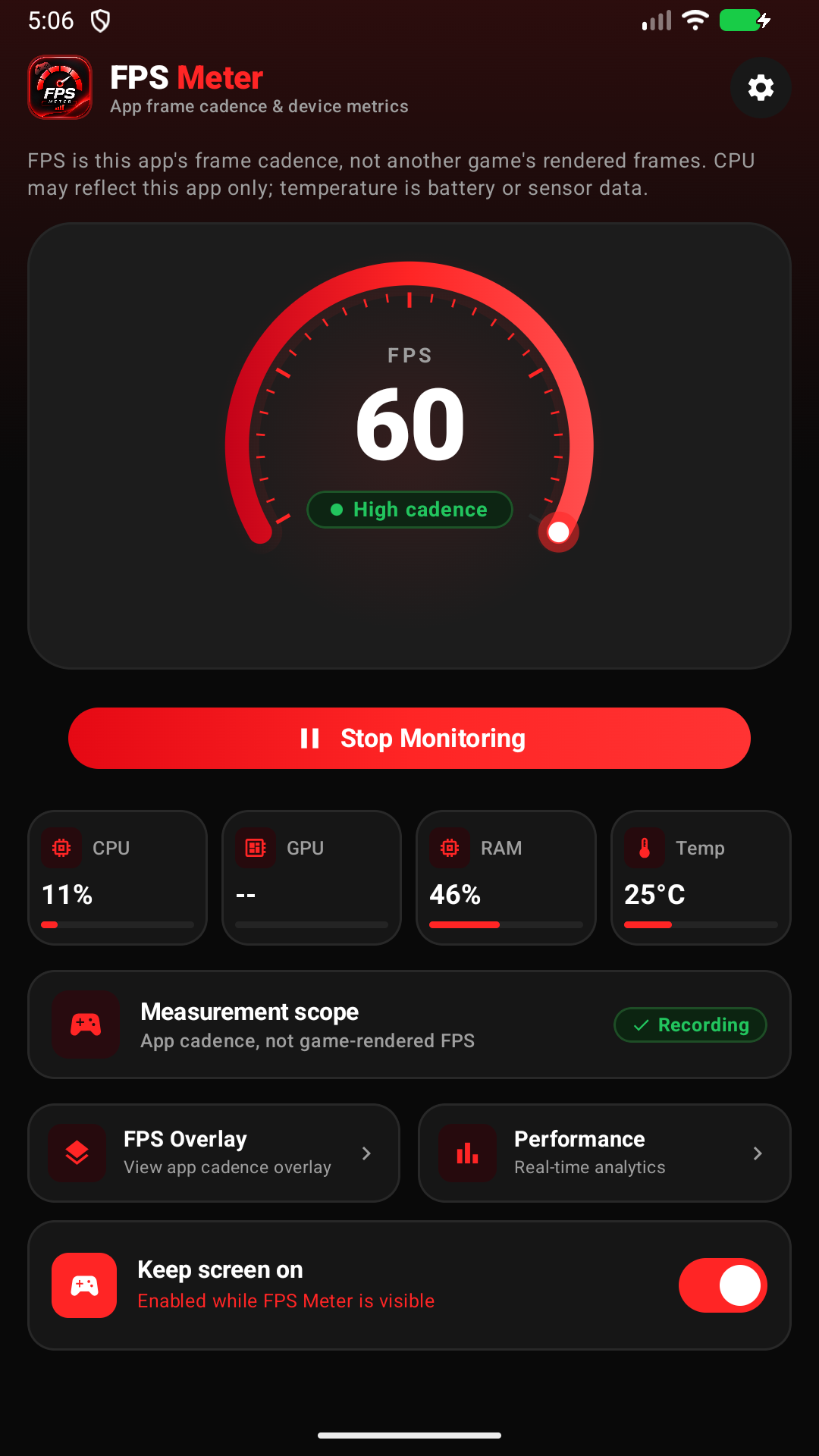
Follow this app’s frame cadence and app frame interval. Explore recent readings in a chart with average, minimum and maximum values.
DASHBOARD + ANALYTICS FPS MeterBY BRIGHT FORGE
MEET YOUR NEXT EVERYDAY UTILITY
Your app’s frame cadence. Your device’s available metrics. One thoughtfully simple view.
For Android 8.0+ • No subscriptions • No account needed
Know what you’re measuring. FPS means FPS Meter’s own frame callback cadence. It does not measure frames rendered by another app or game. Available hardware readings vary by device.
Read the details ↗01 / BUILT AROUND THE ESSENTIALS
Keep the useful information close, with a clear dashboard and controls that fit the way you use your phone.
Follow this app’s frame cadence and app frame interval. Explore recent readings in a chart with average, minimum and maximum values.
DASHBOARD + ANALYTICSView accessible CPU, RAM, GPU and temperature data. If a reading isn’t available, the app leaves it unavailable.
DEVICE METRICSPlace an optional floating overlay over other apps. Choose its position, readings, text size, colors and opacity.
YOUR LAYOUT, YOUR WAYREAD THE SIGNAL, WITH CONTEXT
A useful reading starts with knowing its source. Here’s how to interpret what’s on screen.
How often FPS Meter receives its own frame callbacks. It isn’t a game’s rendered FPS.
Accessible CPU usage; this can reflect FPS Meter’s process rather than the entire device.
Available device memory information reported by Android.
An available battery or thermal sensor reading, not necessarily CPU or GPU temperature.
Shown only when supported. Restricted readings remain unavailable.
03 / A CLOSER LOOK
Actual app screens. Explore the dashboard, tune your overlay, and follow the readings over time.
04 / FROM FIRST OPEN TO YOUR OWN SETUP
A few simple steps to get started with FPS Meter.
Need a hand? Contact support ↗Contact Bright Forge for current availability. A verified Google Play listing link will be added here when published.
Read the measurement scope, then tap Start Monitoring. The dashboard shows app cadence and the device readings Android makes available.
Open FPS Overlay and turn on Enable FPS Overlay. Allow display over other apps in Android settings, return to FPS Meter, and enable it.
Pick a preset, then adjust the readings, appearance and position. Lock the position when it feels right. The on-screen preview is sample data.
Stop monitoring when finished. Change permissions in Android settings, or delete saved sessions using Settings → Clear monitoring history after stopping.
05 / GOOD TO KNOW
No. It shows FPS Meter’s own frame callback cadence, even when the overlay is visible over a game. It does not measure that game’s rendered frames or improve its performance.
Android and device manufacturers restrict access to some hardware data. GPU readings may be unavailable. CPU readings may describe this app’s process only. Temperature may be battery or accessible sensor data.
Display-over-other-apps access is required for the floating overlay. Notifications support the monitoring service. Optional Usage Access can identify the foreground app when available; it is not needed for basic metric display. You can revoke permissions in Android settings.
Check that overlay access is still allowed and the overlay switch is enabled. Some phones restrict background activity; review FPS Meter’s battery settings if needed. Allowing background activity may increase battery use. Contact support with your phone model and Android version if the problem continues.
This release has no billing SDK, in-app purchases or subscriptions. No account registration is required.
Monitoring history and preferences are stored on your device. This release has no advertising or analytics SDK and does not send monitoring records to a developer-operated server. Android backup and any files you choose to share have their own handling. Read the app privacy policy.
A BRIGHT FORGE UTILITY